Wednesday, 2 April 2014

Ask Us!

If you have questions, we've got answers!


Ask Us, available via the Library Webpage or Education/Higher Education LibGuide, allows you to search for answers to previous questions, or ask a new question! There are also options to view featured answers, most popular answers and most recent answers.

LibAnswers combines real-time chat service with email reference, and an ever-growing knowledge base to ensure patrons get answers they need - wherever, whenever! Questions and answers include general information about the library, technical questions and research type questions.

Take a look at the suggestions as you type in the Ask Us box to see if there is a match to your question or browse by popular topics. We will respond to your question within 1 working day (Monday - Friday).

Please note that your questions and our answers may be made public to assist other users of the Library's services.  All personal information will be removed from questions to retain privacy.

Friday, 18 October 2013

Open Access week, 21-27 October 2013


Logo of International Open Access Week; square image

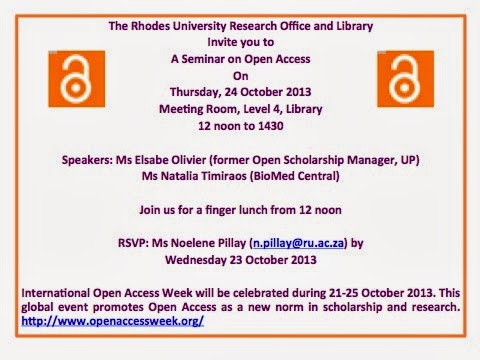
Rhodes University Open Access event: 24 October 2013 (see invitation below)

What is Open Access?         
Open Access (OA) literature is digital, online, free of charge, and free of most copyright and licensing restrictions. What makes it possible is the internet and the consent of the author or copyright-holder.
OA is entirely compatible with peer review, and all the major OA initiatives for scientific and scholarly literature insist on its importance. Just as authors of journal articles donate their labor, so do most journal editors and referees participating in peer review.
OA literature is not free to produce, even if it is less expensive to produce than conventionally published literature. The question is not whether scholarly literature can be made costless, but whether there are better ways to pay the bills than by charging readers and creating access barriers.
There are two primary vehicles for delivering OA to research articles: OA journals and OA archives or repositories.


Thursday, 1 August 2013

Facilities for postgraduate students at Rhodes Library

Postgraduate Commons - Library level  

The Postgraduate Commons is designed to be a scholarly workplace for Honours, Masters and PhD students at Rhodes University. This library facility accommodates 80 students at high-end computer workstations, in worktables, study booths and group study rooms on comfortable seating. The facility caters for all postgraduate students in a colourful and spacious environment.

Research Commons - Library level 2


The Research Commons has been designed as a scholarly common room for senior postgraduate students and academics. It is located on level 2 of the Rhodes University Library, beyond the Science and Pharmacy Faculty hub, and is open, via access control, to academic and research staff, postdocs and postgraduate students at masters and doctoral level. Experienced library staff members assist users’ information needs and arrange consultations with subject specialists if needed. The facility overseen by a post-graduate student assistants after office hours.

Friday, 28 June 2013

Inter-Library Loan services at RUL

The Higher Education Quality Committee (HEQC) of South Africa recognizes that individual academic libraries in South Africa cannot afford to hold all the resources that will be needed by their institution’s researchers.  At the same time, it is the vision of all academic libraries to provide ready access to information resources for their users.  Therefore it becomes the mission of the Inter-Library Loan (ILL) service to provide ready access to the materials that the Rhodes Library does not hold for its researchers, academic staff and postgraduate students by co-operating to share library resources efficiently and effectively with other libraries.


RHODES UNIVERSITY LIBRARY


As the Library has made an enormous financial investment in both its print resources and the access that it provides to online scholarly journals and e-books, it is important that these items are not requested on ILL.  Therefore, before submitting an ILL request, users should first check
2)      the Cory Library
3)       A-Z e-titles via SFX (a listing of full text electronic journals available to Rhodes users) to ensure that the item is not held locally. 
Once it has been established that the item is not available at Rhodes, it can be requested on ILL by filling in the appropriate form
1)      electronically (via the ILL link on the OPAC web page)
OR
2)       manually by using the forms available at the Loans desk on Level 1.
Points to Note:
i)                    Before users can request ILL material electronically, they must first register with the library on OPAC and create a log-in pin.
ii)                   The ILL process is governed by the CHELSA (Committee for Higher Education Libraries in South Africa) agreement, an agreed set of criteria and standards to regulate inter-lending between institutions.  This being said, the lending conditions are determined by the lending library.  In the case of books, the return date of the item must be adhered to as the system depends entirely on the co-operation of others.  Renewal is possible in some cases and this should be discussed with the ILL staff member. 
iii)                 At Rhodes University Library the postage costs of ILL material are charged to the requester.  At present the cost is R 20.00 per item for loaned items (books, theses etc.) and 50c per page (with R1.00 service charge) for items that need to be printed.  PDFs of items are forwarded to the requester free of charge.
iv)                  Original periodicals are almost never available for loan.  Instead a photocopy of the article is supplied.  As mentioned earlier, with regard to locally obtained articles, requesters are expected to pay for the photocopy of the article supplied with the addition of a small service charge.  Articles which are not available in South Africa can be requested from overseas, although this is an expensive option.   Overseas requests should be discussed with the ILL staff member.
v)                  Non-South African theses which are not held in South Africa may be purchased by the requester.  The ILL staff member should be contacted for more information about how these theses may be obtained.
vi)                 It should be noted that some books are not available for loan such as reference materials or rare items. 
vii)               Provided that the requested item is on the shelf at the holding library, the average turnaround time for books and articles sent by mail is 10 – 14 days.  Articles sent by Ariel or PDF should arrive within 3 to 5 days.  The average turnaround time for overseas requests is 14 – 30 days. 

Whenever you are unable to locate an article or book at Rhodes University
– remember to try Inter-Library Loans!!

Thursday, 20 June 2013

Subject Guide for Education Department


A Subject or LibGuide is a customized electronic guide that Rhodes University Library created to support students with their research. LibGuide is accessible from anywhere and at anytime. The link to LibGuide is available via RU Library webpage under Resources or via OPAC.

Please find below the link to Education Subject Guide:

http://ru.za.libguides.com/content.php?pid=299046 (for Higher Education)

http://ru.za.libguides.com/content.php?pid=299085 (for Education)

Friday, 29 June 2012

Referencing Management tool

Refworks is a tool designed to help researchers to easily gather, manage, store and share all types of
information, as well as generating references and bibliographies. It allows you to store references in folders, annotated stored references and format them in a desired output style, for example HAVARD (you may create your own style) and request RefWorks to format a style for you.
To be able to use RefWorks you need to set up an individual account. Choose your own login and password.

The Write-N-Cite tool in RefWorks is very useful for generating in-text references and bibliographies.

Please look at the following link for RefWorks quick start guide:

http://www.refworks.com/refworks2/help/RefWorks_QSG_EN_Dec11.pdf

Instructional guidelines on how to export articles and books to RefWorks:

 LIBRARY WEBPAGE

OPAC (online catalogue):
           Login to set up a PIN for off-campus access (essential for access to databases)
           E-resources: all e-resources or e-journals (online full-text journals by title via SFX)
           Subject Guides: (easy access to relevant databases, new books etc)

Your Online Personal Database and Bibliography Creator

RefWorks is a tool which helps researchers easily gather, manage, store and share many types of information, as well as generate bibliographies and citations.
You need to set up an individual account: choose your own login and password.

Google Scholar

Access via Quick Links or Subject Guide (full-text articles)
Under Scholar Preferences: Show links to import citations into RefWorks
Under Advanced Scholar Search: education (with all of the words)
                                                     leadership in education(with the exact phrase)

Exporting to RefWorks from Google Scholar:

  1. Click on Import into RefWorks
  2. You will be taken to RefWorks where the exported references will appear after clicking on View last imported folder
  3. Select the imported references and move them to New Folder, giving it an appropriate name

Create a Bibliography:

  1. Under Create Bibliography, choose Harvard/APA/Chicago etc. as Output Style
and HTML as File Type
  1. Under References to Include, choose Folder from drop down menu
  2. Create Bibliography  
EBSCOhost

EBSCOhost is a platform which provides access to a number of abstracting and indexing databases together with access to the full-text of thousands of journals/news sources.
Enter EBSCOhost and choose the database/s you wish to search, e.g. Academic Search Premier and ERIC. Click on Continue. Put your keywords in the search box.
Limit results to full-text and scholarly journals.
Further refinements/limitations, such as date range, can also be set.

Search for: (women OR feminism) AND “educational leadership”

Exporting to RefWorks from EbscoHost:

  1. Click on Add to folder (under the required references); this changes to Remove from folder
  2. Click on Folder view (right hand side of the page)
  3. Select all the results, then click on Export icon (with yellow arrow) on the right
  4. Choose Direct export to RefWorks, then click on Save on the left
  5. You will be taken to RefWorks where the exported references will appear after clicking on
View last imported folder
  1. Select the imported references and move them to New Folder, giving it an appropriate name
­­­­­­­­­­­­­­­­­­­­­­­­­The Write-N-Cite tool in RefWorks is very useful for generating in-text references and bibliographies.
You need to download the Write-N-Cite software to your computer (under Tools in RefWorks)         

      1.  In your saved Word document/essay click on the point (after a fullstop and a space) where
            you want your in-text reference to appear
      2.   Click on Add-ins and select RefWorks Write-N-Cite
      3.   Log in to RefWorks (even if already logged in)
            Your entire list of references will display in Write-N-Cite
      4.   Click on Cite option of relevant reference (left hand side)
      5.   Your reference will be inserted into your document/essay
      6.   Click on Bibliography option in Write-N-Cite, choose Style, Create Bibliography

SABINET

Exporting references from Sabinet

1.      Using ISAP and SAePublications search for intellectual w capital (the w between links the words as a phrase).
2.     Mark the first 3 items from each database by checking the boxes on the left hand side of the results.
3.     Click on the Export option (grey bar – right hand side)
4.     Click on Export marked records directly to RefWorks.

 SCOPUS


Exporting references from SCOPUS

1.    Using Scopus search for:  “community of practice”  Select the first 3 results by ticking the boxes on the left side next to each result.
2.     Click on export. (in the grey bar above your results list). Choose your output requirements and click on EXPORT.
JSTOR

Exporting references from JSTOR

1.          Using the Advanced Search option on JSTOR search for “social learning theory”. Select first 3 items. 
2.         To export to RefWorks simply click on ‘Export citation” (at top of result list) and Select the RefWorks option.

EXPORTING / IMPORTING REFERENCES FROM THE LIBRARY OPAC

  1. Conduct Keyword, Title, Author etc search on OPAC
  2. Mark required items by ticking the boxes on the left
  3. Click Add Marked to Bag
  4. Click View Bag
  5. Mark required items by ticking the boxes on the left and click Save All
  6. Click Export Saved
  7. Select End-Note/RefWorks under Format of List, Screen under Send List To
  8. Click Submit
  9. Highlight text (Ctrl A)
  10. Copy text (Ctrl C)
  11. In RefWorks, select References (top left hand corner), drop down to Import
  12. Select Innovative Interfaces as Import Filter/Data Source and EndNote/RefWorks Format as Database
  13. Select From Text and Paste (Ctrl V) reference into box
  14. Select Folder
  15. Import